

Overview
Biscuits Bundle Builder can create a personalized Shopify gift box, while Send To Many can collect multiple recipients and turn one payment into individual recipient orders. Biscuits handles the products inside the box, component inventory and optional gift fields; Send To Many handles addresses, recipient-level details, shipping choices and order generation. This separates bundle construction from multi-address fulfillment instead of asking one app to do both jobs. Because the exact handoff depends on your settings and the properties carried by the cart items, place a small test order before offering the workflow to customers.
Contents
- Can customers send a Shopify gift box to multiple addresses?
- Step 1 - Build the gift box with Biscuits Bundle Builder
- Step 2 - Add the gift box to multi-recipient checkout
- Step 3 - Add recipient addresses and gift details
- Step 4 - Choose self-service checkout or staff order entry
- Step 5 - Verify each recipient order before fulfillment
- How should you test a Shopify gift-box workflow before launch?
- FAQ about Shopify gift boxes and multiple addresses
Can customers send a Shopify gift box to multiple addresses?
Yes, with a multi-recipient app. Shopify's standard checkout accepts one shipping address per order, while Send To Many documents a storefront flow where a shopper adds recipients, assigns cart products, enters different addresses and pays once. The app then creates an aggregate order for the transaction and an individual Shopify order for each recipient.
A build-your-own box adds another layer. The shopper must first choose the actual products inside the gift, then assign that configured cart item to one or more people. Treat those as connected stages rather than one large form.

What do Biscuits Bundle Builder and Send To Many each handle?
Biscuits Bundle Builder provides the guided storefront experience for choosing gift-box components. The selections become component products in Shopify, with their own SKUs, quantities and inventory. Biscuits can also collect fields such as From, To and Message while the shopper builds the box.
Send To Many starts from products already in the shopper's cart. Its checkout collects recipients and addresses, allocates cart products to those recipients, calculates the relevant shipping choices and creates the orders used for fulfillment. Its own bundle guidance says line item properties can be passed into the generated recipient orders when that option is enabled.
Does the multi-recipient workflow create separate Shopify orders?
Send To Many says it creates a parent or aggregate order that records the paid transaction, plus one recipient order for each destination. Your team fulfills the recipient orders because they contain the shipping address, allocated products and recipient details. This order model is supplied by Send To Many; it is not the behavior of Shopify's standard single-address checkout by itself.
Step 1 - Build the gift box with Biscuits Bundle Builder
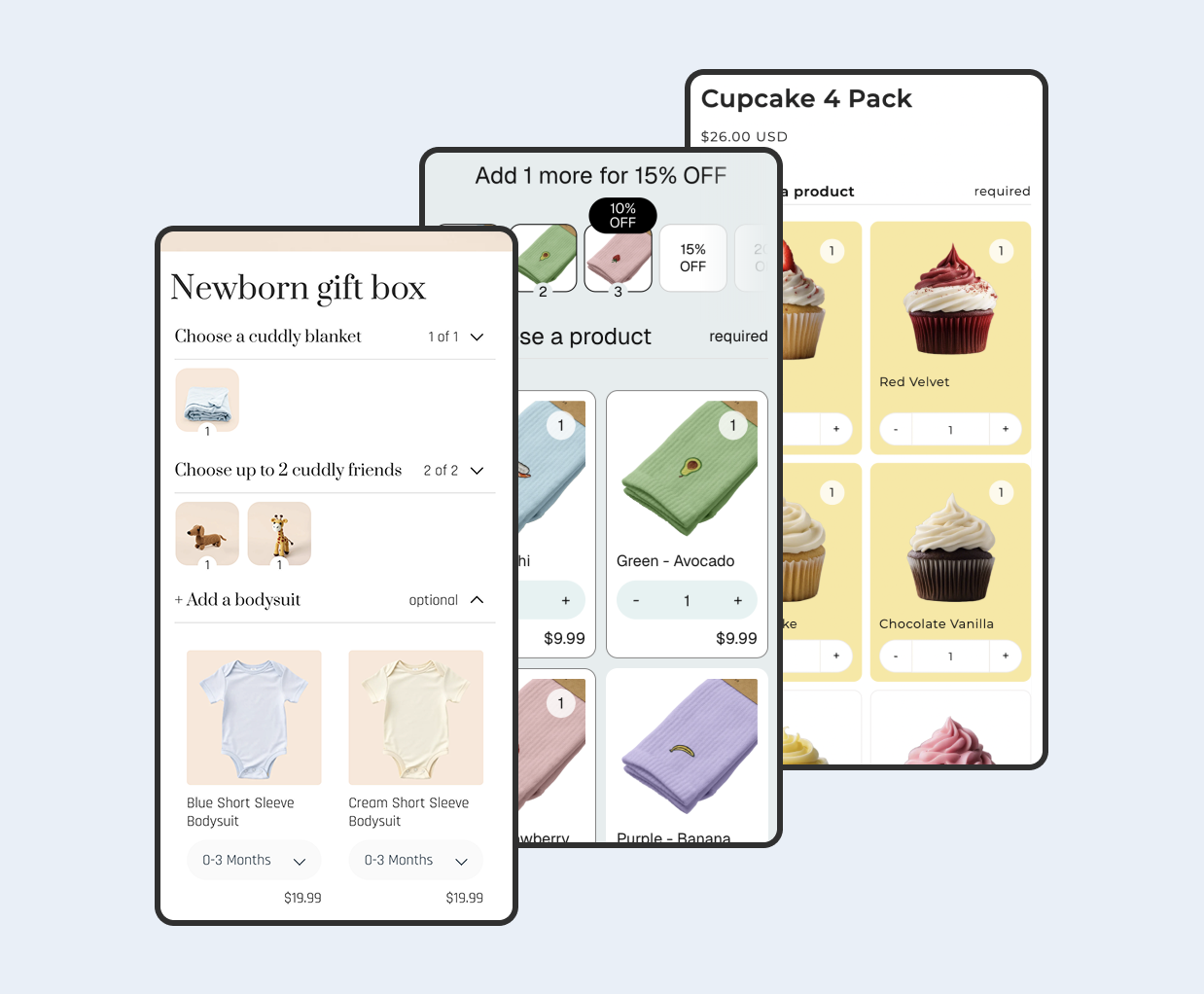
Create the customer-facing box before configuring the multi-recipient stage. Decide which products shoppers can choose, how many selections each step requires and whether the gift uses sum-of-products, fixed or discounted pricing. Our complete mix-and-match bundle setup guide covers the broader build process.
Keep the box easy to audit. Clear step names such as “Choose six snacks” and “Add a gift card” make the final order easier for both the shopper and fulfillment team to understand.
How does component inventory stay accurate?
Biscuits uses the selected component products rather than maintaining a separate stock count on the bundle parent. Its inventory documentation explains that the components appear as individual final-order line items with their SKUs and quantities. If a component sells individually or inside another bundle, the same Shopify inventory record is used.
That shared-stock model avoids manually reconciling a second gift-box inventory pool. For a deeper explanation, see how Shopify bundle apps automatically sync component inventory.
How do you add a gift message or personalization field?
Biscuits custom fields can collect short text, long text, radio choices, dropdown selections and checkboxes inside the builder. A quick gift-message setup creates From, To and Message fields. Each answer is saved under a property name and attached to the selected component products according to the group's settings.
Choose labels your fulfillment team will recognize. Keep property names stable after launch, decide whether the answer belongs on the first selected component or all selected components, and avoid naming a minimum subscription plan here because the current help page contains inconsistent entitlement wording.
Step 2 - Add the gift box to multi-recipient checkout
After the shopper builds a box and adds it to the cart, the multi-recipient button can take them to Send To Many's storefront checkout. In Send To Many settings, enable the option that carries cart line item properties through to payment and recipient orders. This setting applies to every relevant cart property, not only bundle data.

Send To Many's integration page names other bundle apps rather than Biscuits, so treat its general line-item-property rule as a compatibility condition, not proof of this exact pairing. Biscuits also recommends end-to-end testing when another app reads or adds properties.
When does one gift-box configuration go to every recipient?
Send To Many's bundle guide describes the straightforward case: a shopper configures one bundle in the cart, assigns it to several recipients and the same bundle properties are copied to every generated recipient order. That suits a standard corporate gift where everyone receives the same box.
Can different recipients receive different products or box configurations?
Send To Many documents different products, variants and quantities for each recipient when those items are in the cart. However, that does not prove that one Biscuits cart line can contain several different internal component selections. If recipients need different box contents, test whether the shopper must add each configured box as a separate cart item before assigning them.

Step 3 - Add recipient addresses and gift details
Send To Many lets shoppers type recipient details, use saved addresses or upload a CSV. Its checkout documentation says the CSV route adds recipient data only, while product selections are still made in the recipient cards. Each card can also hold a gift message, shipping date and eligible products from the cart.

When should a shopper enter recipients manually?
Manual entry is practical for a short, manageable list where the shopper wants to review each person's products and message. Do not invent a fixed recipient threshold. The point at which typing becomes inconvenient depends on how much information each recipient needs.
When should a corporate buyer upload a spreadsheet?
Use a spreadsheet when the merchant or buyer already maintains a structured recipient list. Send To Many has two related paths: checkout CSV upload for recipient data, and its broader upload workflow for teams importing recipient, address and product details before generating orders. Validate flagged rows and correct addresses before payment or order generation.
Step 4 - Choose self-service checkout or staff order entry
Self-service checkout works when the buyer can build the boxes, enter recipients and pay without help. Keep the journey on the storefront and provide clear links from the cart to the multi-recipient page.
When is staff order entry better for corporate gifting?
Staff order entry is better for concierge sales, phone orders or negotiated corporate gifts. Send To Many documents a staff mode where an authorized account can search for a customer, use saved addresses, build the multi-recipient order and hand it off for invoicing. It runs as a separate checkout configuration, so the assisted workflow does not need to replace your customer-facing page.
For an operational view of how specialty food brands combine boxes with recipient workflows, read Send To Many's gift-bundle case guide. It is a useful partner example, not independent testing of every Biscuits configuration.
Step 5 - Verify each recipient order before fulfillment
Open every generated recipient order in Shopify before treating the integration as production-ready. Compare it with the choices made in the builder and recipient card, then inspect the view or export your fulfillment team actually uses.
Do component selections and gift messages reach the order?
Biscuits documents component products and custom-field answers on final-order line items. Send To Many documents carrying cart line item properties into generated recipient orders when pass-through is enabled. Together, those mechanisms provide a plausible handoff, but only a completed order on your store can confirm that the exact values survive both apps.
What should the fulfillment team check for every recipient?
- The recipient name and full shipping address.
- The selected component products, variants, SKUs and quantities.
- The gift message or personalization property beside the intended item.
- The shipping method, requested date and notification settings.
- Any aggregate or parent order that should not be fulfilled separately.
How should you test a Shopify gift-box workflow before launch?
Run a small test that is deliberately easy to audit. Send To Many recommends two or three test recipients for a bundle integration. Use products, messages and addresses that make it obvious which data belongs to which person.

What should a two-recipient test order cover?
Use two safe test addresses, two unmistakable gift messages and, if your intended experience requires it, two different configured boxes. Complete payment, then confirm the correct recipient orders were generated. Check component inventory, line item properties, shipping choices, confirmation emails and any packing slip or order export.
What should you check before a large corporate send?
Review component stock, recipient validation, shipping rates, message length, order-generation settings and staff permissions. Confirm how failed or corrected addresses are handled, which order records capture revenue and which orders your fulfillment team should ship. Repeat the test after changing either app's settings or adding another cart, options, delivery or fulfillment integration.
FAQ about Shopify gift boxes and multiple addresses
Can one Shopify checkout cover multiple shipping addresses?
Shopify's standard checkout supports one shipping address per order. Send To Many adds a multi-recipient storefront flow where the buyer enters several destinations and pays once; the app then generates an individual Shopify order for each recipient.
Does Send To Many work with Shopify bundle apps?
Send To Many says it works with bundle apps that store bundle data as Shopify line item properties. Its documentation does not specifically name Biscuits. Enable property pass-through and complete a current test order before describing the Biscuits and Send To Many combination as verified on your store.
Does Biscuits keep gift-box component inventory in sync?
Biscuits tracks inventory on the component products rather than the gift-box parent. The individual components appear in the final Shopify order, so bundle purchases and standalone product purchases draw from the same component stock records.
 View on app store