

Overview
Shopify smart collections (also called automated collections) automatically group products based on rules you define. This FAQ answers the most common merchant questions about how conditions work, how to use the new "Tag is not equal to" exclusion operator, how metafield-based conditions enable advanced filtering, the 60-condition limit, and why products sometimes appear or disappear unexpectedly. Whether you manage a large catalog, run seasonal promotions, or curate bundled product collections, these answers will help you build smarter, more reliable collections.
Contents
Conditions and Matching Logic
What are smart collection conditions in Shopify?
You can add one or more conditions for a smart collection to match products based on many details, including product title or type, tags, price, or even inventory stock. Collections can have at most 60 conditions, and defining them can automatically organize products without manual management, saving time as your catalog grows.
The available condition fields include Title, Type, Category, Vendor, Tag, Price, Compare-at price, Weight, Inventory stock, and Variant's title, plus any activated metafield definitions. Each condition consists of a field, an operator (such as "is equal to," "contains," or "is not equal to"), and a value you enter.
What is the difference between "all conditions" and "any condition"?
When you create a smart collection with multiple conditions, Shopify asks you to choose one matching mode for the entire collection. Selecting "all of the conditions listed" means a product will be added to the collection only if it matches all the conditions. On the other hand, choosing "any of the conditions listed" means the system will add products that meet at least one condition.
Shopify's Smart Collections only allow all conditions (AND) or any condition (OR), but not a mix of both (AND + OR together). This means you cannot group conditions like "Product type is Hats AND (Tag is Brand-A OR Tag is Brand-B)" in a single collection. The practical solution is to flip the logic: instead of excluding 40 vendors, tag the products you want to include and use a single tag condition.
How do special characters in tags affect smart collection conditions?
This is a common gotcha for stores with structured tagging systems. Although you can create tags that use some special characters, they might not work as expected in searches or as conditions in smart collections. Special characters in tags are either ignored or are treated as being the same.
For example, if you have a condition of "Tag is equal to red-new" or "Tag is not equal to red-new," all products that have the following tags are also included in or excluded from the collection: red_new, red+new, red&new. The safe practice is to stick with letters, numbers, and hyphens, and to treat hyphens and underscores as effectively the same character when planning your tagging conventions.
Tag Exclusions and the "Is Not Equal To" Operator
Can you exclude products by tag in a Shopify smart collection?
Yes. You can now use an "is not equal to" operator for product tags when setting smart collection conditions, automatically leaving out products with specific tags. Use it to refine themed collections, omit recalled items, or exclude select products from promotions alongside other rules.
This was one of the most requested features in Shopify's history. A popular community thread described the exact use case: running a store-wide sale for a product type while excluding new arrivals by tag. Previously, merchants had to rely on Liquid workarounds or third-party apps. Now it is a native option in the smart collection conditions dropdown.
How do you set up a "Tag is not equal to" condition?
To use the "is not equal to" operator for excluding products, navigate to your Shopify admin and go to Products > Collections, then create a new smart collection or edit an existing one. In the conditions area, select "Tag" from the first dropdown, choose "is not equal to" from the second dropdown, and type the exact tag you want to exclude.
Tag accuracy matters: make sure you enter the exact tag as it appears on your products. If you enter an invalid tag, then all your store's products are matched to the condition. That means a typo in a "not equal to" condition could exclude nothing, or an invalid tag in an "is equal to" condition could pull in your entire catalog.
What are the pitfalls of using "is not equal to" with multiple exclusions?
When using "is not equal to" to exclude products based on categories such as Vendor or Type, the condition might not filter products correctly, especially when using multiple exclusions. The behavior depends on your matching mode:
With all conditions, a product must not match any of the exclusion criteria to be included. This typically works as expected. With any condition, a product is included if it doesn't match at least one exclusion criterion, which can inadvertently include products you want to exclude. Consider using product tags with the "is equal to" condition instead for more reliable exclusions.
Tip: When combining tag exclusions with inclusion rules, always use "all conditions" mode so that the exclusion acts as a hard filter on top of your inclusion criteria.
Metafield-Based Conditions
How do metafield conditions work in smart collections?
Instead of relying entirely on tags, you can now create a metafield definition for something like "Material" or "Season" and use it directly as a smart collection condition. This is more structured, less error-prone, and much easier to manage than freeform tags.
To use a metafield definition for smart collections, you need to activate the setting in your metafield definitions. From your Shopify admin, go to Settings > Metafields and metaobjects, select either Products or Variants, click the metafield definition you want to use, enable "Smart collections" in the Options section, and click Save. Once activated, the metafield will appear as a condition option when you create or edit a smart collection.
Metafield conditions work best with structured data that has known, consistent values: things like material, color codes, or boolean flags. They're less suited for free-text metafields or numeric ranges because the available condition operators vary by metafield type.
What are the limitations of metafield-based smart collections?
You can only use product or variant metafield definitions and values in your smart collections. If you add a metafield to a variant and create a smart collection for that metafield, then your smart collection will pull in the whole product with the other variants.
The smart collections setting has a maximum of 128 definitions per product metafield definitions and variant metafield definitions. You can't delete a metafield definition until the collection is updated to remove the metafield definition as a condition. Only certain metafield product and variant definitions are supported with specific conditions.
A metafield that only exists on half your products will produce a collection that looks incomplete. Make sure to populate metafield values consistently across your catalog before building collections around them.
Limits, Troubleshooting, and Workarounds
What is the smart collection condition limit, and how do you work around it?
Collections can have a maximum of 60 conditions. For most stores, that's more than enough. But if you're running a large multi-vendor operation and trying to build exclusion-based collections ("everything except these 40 vendors"), you can reach that ceiling.
The practical solution is to flip the logic. Instead of excluding 40 vendors, tag the products you want to include and use a single tag condition. It's less dynamic, but it keeps things clean and well within the condition limit. You can automate that tagging step with Shopify Flow so it stays current as new products arrive.
The 5,000 smart collection limit ensures optimal performance. Having a large number of smart collections can slow down your Shopify admin and delay products displaying in collections on your storefront, especially with a large product catalog. If you're approaching the limit, consider deleting unused smart collections or converting some to manual collections.
Why do products appear in or disappear from my smart collection unexpectedly?
In rare cases, smart collections might contain the wrong products. The collection might contain products that don't match its conditions, or fail to contain products that do match its conditions.
Shopify provides a built-in workaround to force a refresh. Choose any existing condition, such as "Product tag is equal to summer," and add a copy of that exact same condition. This forces the smart collection to update. Click Save, then delete the duplicated condition and click Save again. Check to confirm if the issue has been resolved in both the Shopify admin and your storefront.
If only one product is wrong, you can make a minor change to the product, such as adding a space to the description or entering a compare-at price, then click Save. Revert the change and save again to trigger a re-evaluation.
How do smart collections work with bundle products?
Bundle products created on the Shopify Bundles platform behave like regular products in your catalog. They have titles, tags, types, and metafields, so they can match smart collection conditions just like any other product. This means you can include bundles in a "Holiday Gift Sets" collection by tag, or exclude them from a "Clearance" collection using "Tag is not equal to."
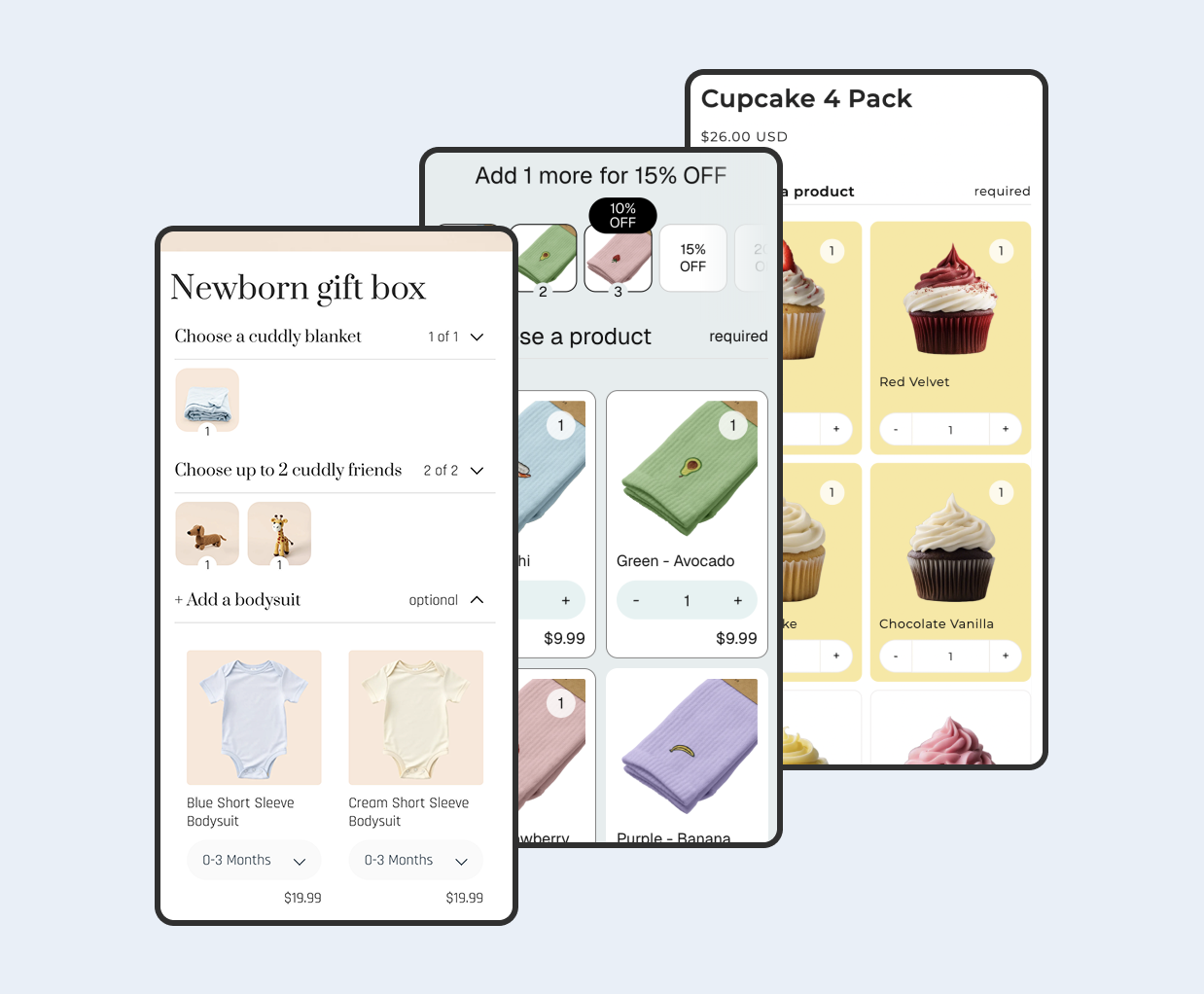
If you use a bundle builder app like Biscuits Bundles, the bundles your customers build create standard Shopify bundle line items. You can tag those bundle products the same way you tag any other product, and smart collections will pick them up accordingly. To see how multi-step bundle builders work with product-level cards, quantity selectors, and flexible pricing, check the Biscuits Bundles demos page.
Tip: Create a dedicated tag like bundle for all your bundle products. You can then easily include or exclude bundles from any smart collection using a single condition.
 View on app store